How to install a World of Warcraft addon manually
September 26, 2026 · Updated September 30, 2026
Unzip the addon so its folder sits directly inside Interface\AddOns, containing a .toc file with the same name as the folder. Restart the game, then enable it from the AddOns button on the character select screen.
The path
The AddOns folder lives inside the version folder, not the top level of the install:
World of Warcraft\_retail_\Interface\AddOns\MyAddon\MyAddon.toc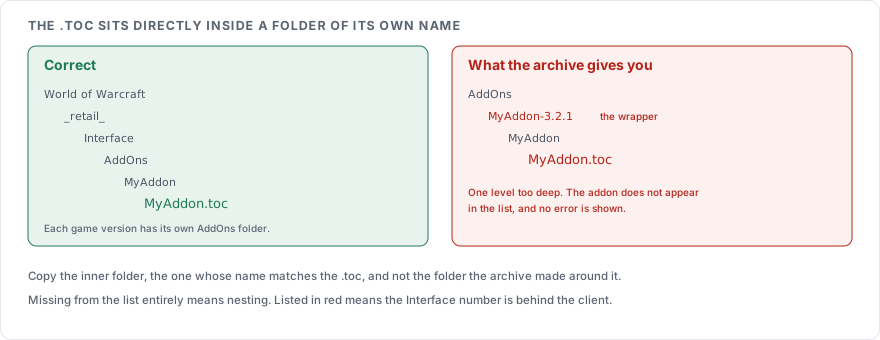
Each game version keeps its own copy, so _classic_era_ and the other version folders each have their own Interface\AddOns. An addon dropped into the wrong one does nothing and gives no error.
The nesting is where most failed installs come from. A downloaded archive often unpacks to MyAddon-3.2.1\MyAddon\, and copying the outer folder leaves the .toc one level too deep. The rule is that MyAddon.toc has to sit directly inside AddOns\MyAddon\.
What the .toc file is
The table of contents file tells the client what the addon is called, which game version it was built for, and which files to load in what order. Lines beginning ## are directives; everything else is a file path.
## Interface: 100207
## Title: My Addon
## Notes: Does the thing
## Version: 1.0.0
## Author: Someone
## SavedVariables: MyAddonDB

MyFrame.xml
MyCode.lua
lib\MyCode.lua
Files load top to bottom in the order listed, so a file that depends on another goes below it. Backslashes are the recommended separator in those paths.
The Interface number
## Interface: 100207 is the game version written as XXYYZZ, so that example is 10.2.7. An addon can declare several at once for multiple game versions:
## Interface: 120100, , 38002, 20506, 11509When the number does not match the running client, the addon shows as out of date and will not load on its own. Tick "Load out of date AddOns" on the AddOn List frame at character select to run it anyway, which works for most addons after a minor patch and fails for any that call an API the patch changed.
Saved variables
Anything the addon remembers between sessions goes in the files named by these directives.
| Directive | Written to |
|---|---|
## SavedVariables: MyAddonDB | WTF\Account\[account]\SavedVariables\ |
## SavedVariablesPerCharacter: MyAddonCharDB | WTF\Account\[account]\[server]\[character]\SavedVariables\ |
The client writes these on a clean logout or exit, which is why settings vanish after a crash. Back up the WTF folder before reinstalling anything, since it holds every addon's configuration along with your interface layout.
Dependencies
| Directive | Meaning |
|---|---|
## Dependencies: SomeAddOn | Will not load unless that addon is present, and loads after it |
## OptionalDeps: SomeAddOn | Loads after that addon when it is present, and loads anyway when it is not |
## LoadOnDemand: 1 | Does not load at startup, and waits for another addon to call LoadAddOn() |
A library bundled inside an addon usually appears as a folder under the addon's own directory and is listed in the file list, so it needs no separate install.
After the copy
Restart the client fully. The addon list is read at launch, so an addon added while the game is running will not appear.
At character select, open the AddOn List frame, find the addon, and confirm the tick. If it is missing from the list entirely, the folder nesting is wrong or the .toc name does not match its folder. If it is listed in red as out of date, the Interface number is behind the current build, which is covered in How to fix a World of Warcraft addon after a patch.
Sources
AddOn, Warcraft Wiki, for the install path and the out of date behaviour
TOC format, Warcraft Wiki, for the directives, the Interface number format and the saved variable paths
How to read a World of Warcraft combat log, for the other file the client writes on your behalf